









The right design software depends on what you make. Canva is enough for quick posts and presentations, Figma is for website and app design, and Illustrator and Photoshop are the professional choice for logos and photos. As of 2026, Affinity (for individuals), Inkscape, GIMP and Krita are free, and Figma is free for students.
Beginners often think the “right” program will make them a designer. In reality software is a tool, like a hammer: composition, colour and typography are the same everywhere. But the right choice saves time and money. Below you will find a comparison table, free alternatives and a simple guide to where to start.
How to choose design software: three questions
- What are you making? A social post, a logo, a photo retouch, a website mock-up or an illustration? Each needs a different kind of program.
- What device do you have? Some programs run only on Windows and macOS, some in the browser, some on a phone too.
- What is your budget? The professional standard is a paid subscription, but strong free alternatives exist and are fully enough for learning.
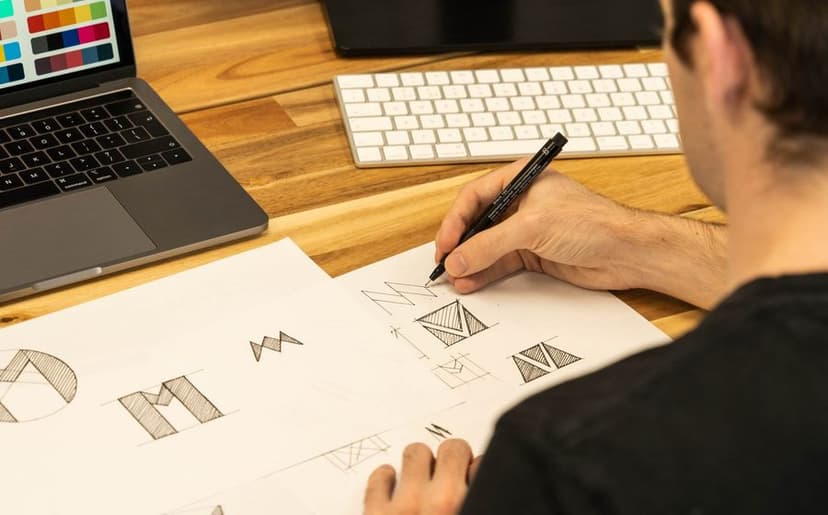
The key difference to understand from day one: vector programs (Illustrator, Inkscape, Figma) build shapes from mathematical curves and stay sharp at any size, while raster programs (Photoshop, GIMP, Krita) work with pixels and are for photos and painting.
Design software compared
| Software | Price (2026) | Platform | Type | Best for |
|---|---|---|---|---|
| Canva | Free plan and paid plans | Browser, Windows, macOS, iOS, Android | Templates | Posts, presentations |
| Figma | Free Starter, free for students | Browser, desktop | Vector, UI | Web and app design |
| Illustrator | Paid subscription | Windows, macOS | Vector | Logos, illustration |
| Photoshop | Paid subscription | Windows, macOS | Raster | Photos, collage |
| Affinity | Free for individuals | Windows, macOS | Vector, raster, layout | Everything in one app |
| Inkscape | Free, open source | Windows, macOS, Linux | Vector (SVG) | Logos, laser cutting |
| GIMP | Free, open source | Windows, macOS, Linux | Raster | Photo editing |
| Krita | Free, open source | Desktop, Android | Raster | Digital painting |
Prices and terms change often and vary by country, so check the official page before you buy.
Canva vs Figma: what is the difference?
Both run in the browser and both have a free plan, but they are built for different jobs.
Canva is built around templates: you pick a ready-made design and change the text, photos and colours. It is best when you need a social post, a presentation or a flyer quickly and you are not a designer. Canva for Education is free for school teachers and their students.
Figma is a professional tool for interface design: websites, apps and prototypes. You build everything from scratch with grids, components and auto layout, and several people can work on one file at the same time. Students and educators over 13 can get Figma’s education plan free on their own by verifying their status.
In short: for fast results, Canva; to learn design, especially for digital products, Figma.
Illustrator and Photoshop: when is paid software worth it?
Adobe Illustrator and Photoshop are the industry standard in graphic design: agencies, print shops and many employers expect their files (AI, PSD). Both are available only by subscription, on their own or as part of a Creative Cloud bundle, with discounts for students and teachers.
Paid software is worth it if you see design as a profession or already take on clients. For a beginner, it is better to learn the basics in a free program first: the Pen Tool, layers, colour and typography work almost the same everywhere, and the skills transfer easily.
Do not download cracked software: such files can contain malware, and breaking the licence breaks the law. Free versions are enough for learning: Affinity, Inkscape, GIMP, Krita or Figma’s education plan. Learn principles, not buttons: a good designer picks up a new program in a week.
Free alternatives to Photoshop and Illustrator
- Affinity: in October 2025 Canva merged Affinity into a single app (vector, photo and page layout) and made it free for individuals. It runs on Windows and macOS; its AI features require a paid Canva plan.
- Inkscape: a free, open-source (GPL) vector program for Windows, macOS and Linux. Its native format is SVG, which is why it is often used to prepare files for laser cutting and engraving.
- GIMP: a free raster editor for photos on Linux, macOS and Windows. As of September 2026 the latest version is GIMP 3.2.6.
- Krita: a free, open-source program for digital painting and illustration: brushes, layers, stabilisers, even animation.
- Photopea: a free editor in the browser that opens and saves PSD files. Handy when you need to open a Photoshop file quickly on someone else’s computer.
If laser engraving interests you, preparing a vector file is part of that too. See how it works in practice in laser engraving on wood.
Which software should you learn first?
| Your goal | Start with | Next step |
|---|---|---|
| Posts for a business | Canva | Figma or Affinity |
| A career in graphic design | Affinity, or Inkscape and GIMP | Illustrator and Photoshop |
| Web and app design | Figma | Prototypes, components |
| Digital painting | Krita | Photoshop or Affinity |
| Laser, CNC, vinyl cutting | Inkscape | Illustrator |
Our advice for teens: one vector and one raster program. Make the same project in both, for example a logo in vector and a poster with that logo in raster. That way you learn what each is for. The design foundations (composition, colour, typography) are explained in detail in our graphic design course for teens guide.
File formats: which one to use when
Half of knowing a program is saving in the right format. This is where beginners run into trouble most often: a logo saved as JPG that prints blurry, or a poster the print shop will not accept.
- SVG: a vector format for the web, icons and laser cutting. Sharp at any size.
- PDF: the safest choice for print: it keeps vectors, fonts and colours. For a print shop, usually in CMYK.
- AI and PSD: Illustrator and Photoshop working files with layers. Keep them to edit later; clients usually get a PDF or PNG.
- PNG: raster with a transparent background, for logos and screens.
- JPG: compressed raster for photos. No transparency, and it loses quality every time you re-save.
A rule that will save you: always keep the working file in its original format with layers, and export a separate copy in whatever format the job needs.
AI in design software
AI is now in almost every design program: background removal, image expansion, generating options from text. These features are often limited by “credits”: Figma’s free plan, for example, comes with daily and monthly AI credit limits, and Affinity’s AI tools require a paid Canva plan. AI gives you options fast, but a designer still decides which one is good and why. For practical examples, read AI for designers.
What computer and devices do you need?
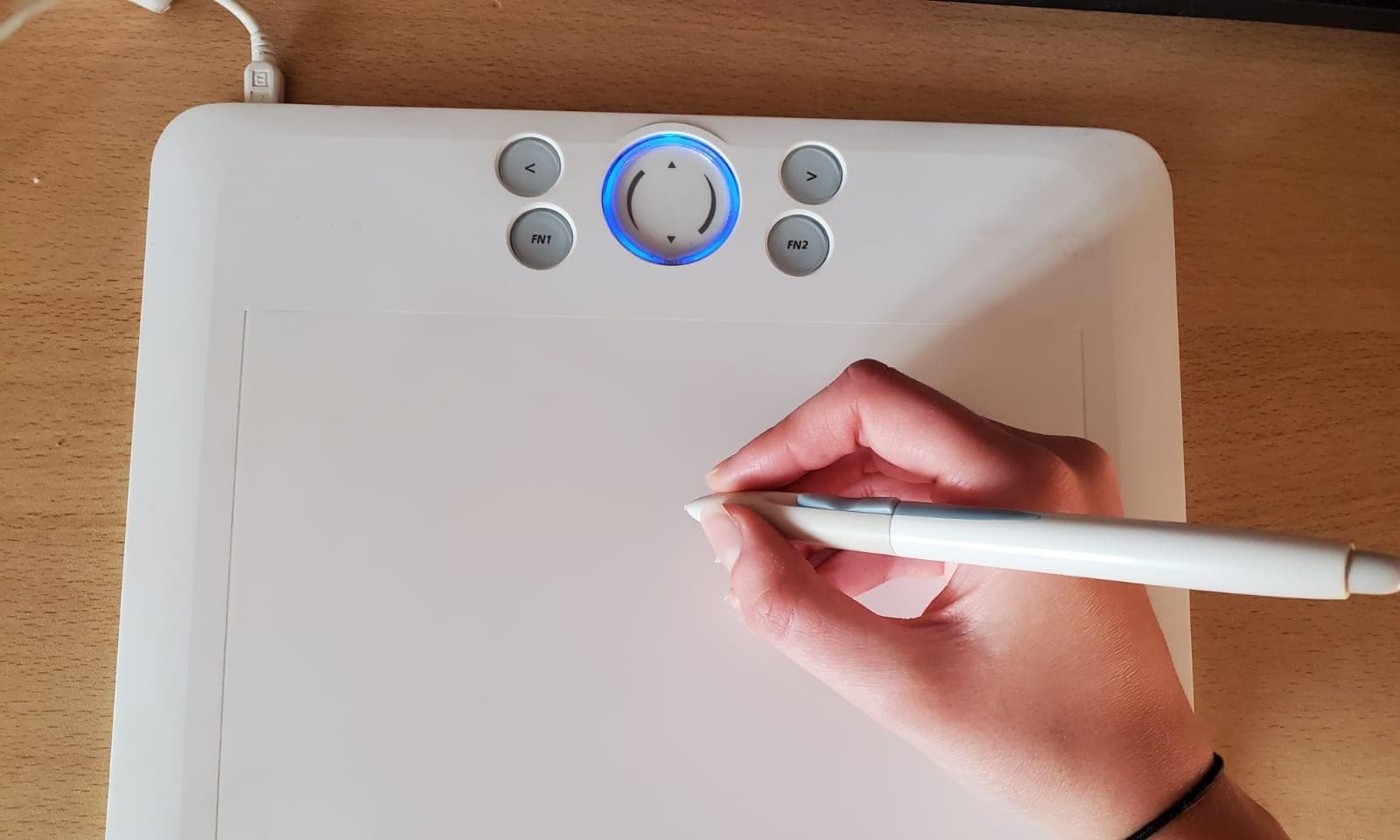
Any modern browser is enough for Canva and Figma. Photoshop and Affinity need more memory, especially for large files: check the exact requirements on each program’s official page. A graphics tablet is not required. A mouse is fine for logos and posters; a tablet is worth it when you draw a lot by hand, for example in Krita.
A graphic design course in Tbilisi
At Tbilisi Digital School, on the course Graphic Design and Intro to Architecture, students aged 13–17 work in Adobe Illustrator and Photoshop: the workspace, vector and raster, the Pen Tool, Pathfinder, layers and blending modes. They create posters, branding and social media visuals, and draw a house plan in ArchiCAD. The course ends with a portfolio.
Frequently asked questions
What is the best free design software?
It depends on the job. For vector work (logos, icons), Inkscape or Affinity; for photos, GIMP or Affinity; for painting, Krita; for interfaces, Figma’s free plan. If you want one program for everything, as of 2026 Affinity is the most complete free option for individuals.
Canva or Figma: which is better for beginners?
If you need a post or presentation quickly, Canva. If you want to learn design, especially for websites and apps, Figma. Canva helps you with templates; Figma teaches you to build a design from scratch.
Is Photoshop free?
No, Photoshop is available by paid subscription, with discounts for students and teachers. Free alternatives for photo editing are GIMP, Affinity and the browser-based Photopea, which also opens PSD files.
Can you learn design on a tablet or phone?
Partly. Canva works well on a phone, and Krita has an Android version. For serious learning a computer is better: a big screen, keyboard shortcuts and precise control save a lot of time.
Is Affinity really free?
Yes. As of 2026 Affinity is free for individuals on Windows and macOS. Only the optional AI tools are paid, through a paid Canva plan. Separate terms apply to organisations.
What is Figma, and is it free?
Figma is a browser-based tool for designing websites, app interfaces and prototypes, where several people can work on one file at once. The free Starter plan is enough for beginners, and students and educators over 13 get the education plan free after verifying their status. Paid plans are for teams and companies.
Next step
Pick one vector and one raster program from this guide and make one small project: a logo and a poster for it. If you would like your teen to learn the professional tools with a mentor in Tbilisi and finish with a portfolio, book a free consultation.
Sources
- Figma pricing, Figma
- Figma for Education, Figma
- Creative Cloud plans, Adobe
- Affinity, Canva
- Canva, Wikipedia
- Inkscape, Wikipedia
- GIMP: GNU Image Manipulation Program
- Krita: digital painting, creative freedom