








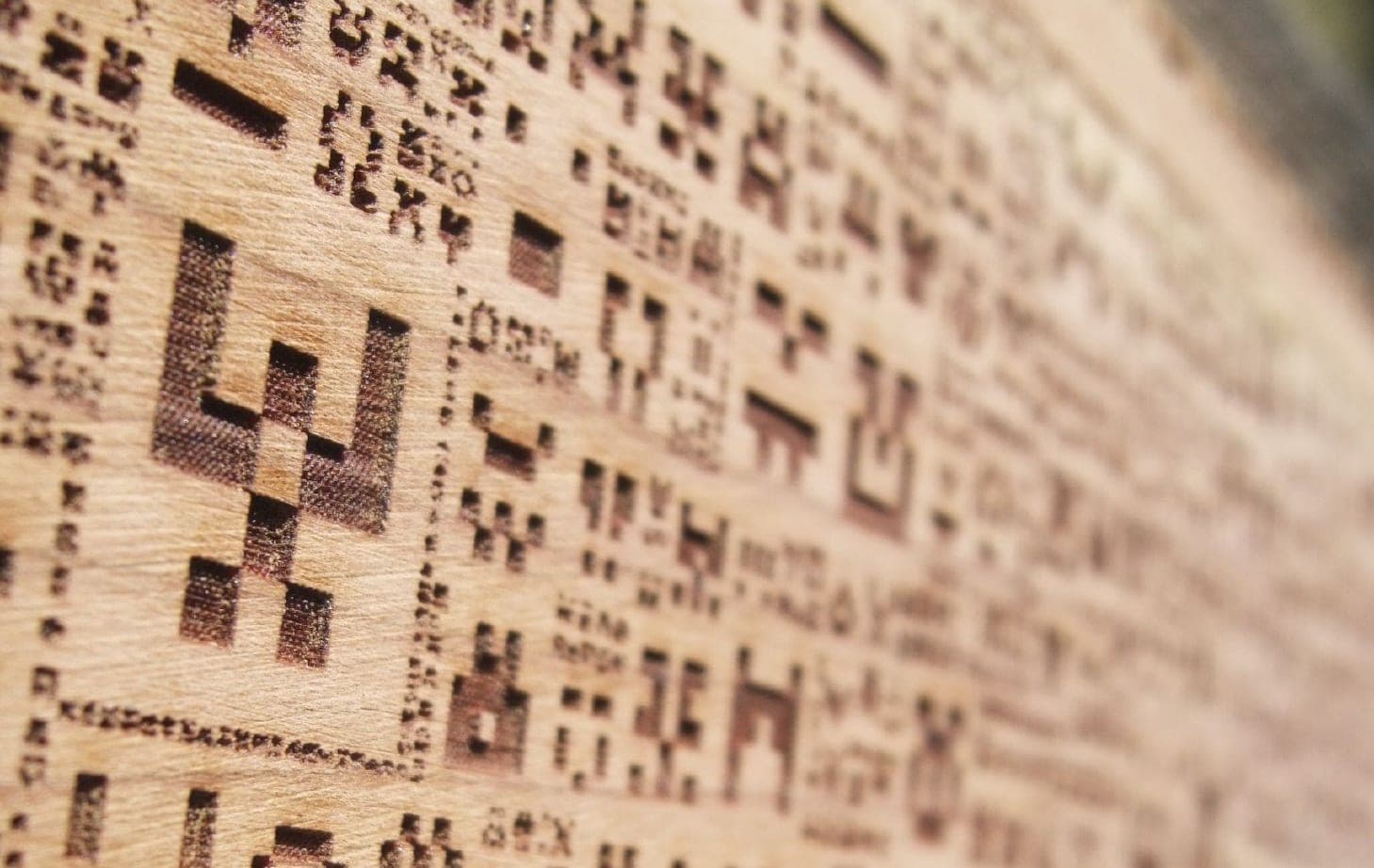
Laser engraving on wood works best on light, fine-grained wood: basswood, maple, alder or birch plywood. Logos and lettering are engraved as vector Fill, photos in Image mode with dithering (Jarvis or Stucki) at a line interval of about 0.1 mm. Speed and power come from a test grid, and the surface is protected with masking before engraving.
Engraved wood is one of the most popular laser products: a box with a name, a family photo, a company logo on a gift. Technically it is simple, but the result is decided by details: the wood species, the image preparation, the dithering mode and a tenth of a millimetre in the line interval.
This guide walks through the whole process. The examples use LightBurn, the most widely used laser software; if you have not used it yet, start with LightBurn for beginners.
Which wood is best for laser engraving?
A laser burns and darkens wood, so the lighter the wood and the more even its grain, the crisper the image. Resinous and open-grained species burn unevenly.
| Species | Surface | Engraving result | Note |
|---|---|---|---|
| Basswood (linden) | Light, even, soft | High contrast, fast | Overburns easily at high power |
| Maple | Light, dense | Fine detail, strong contrast | Deep engraving takes longer |
| Alder | Light, even, low resin | Fast and clean | Chars very little |
| Cherry | Reddish, smooth | Beautiful, darkens with age | Contrast changes over time |
| Walnut | Dark, dense | Subtle, refined contrast | Slower speed or more power |
| Birch plywood | Light, smooth | Good and cheap | Glue layer can leave marks |
| Pine | Yellow, resinous | Uneven burn, sticky residue | Needs masking |
| Oak | Open grain | Blurred detail | Not for photos |
For a beginner, basswood or birch plywood is the best choice: cheap, light and quick to engrave. For other woods, MDF and the materials that must never be cut, read which materials a laser can cut.
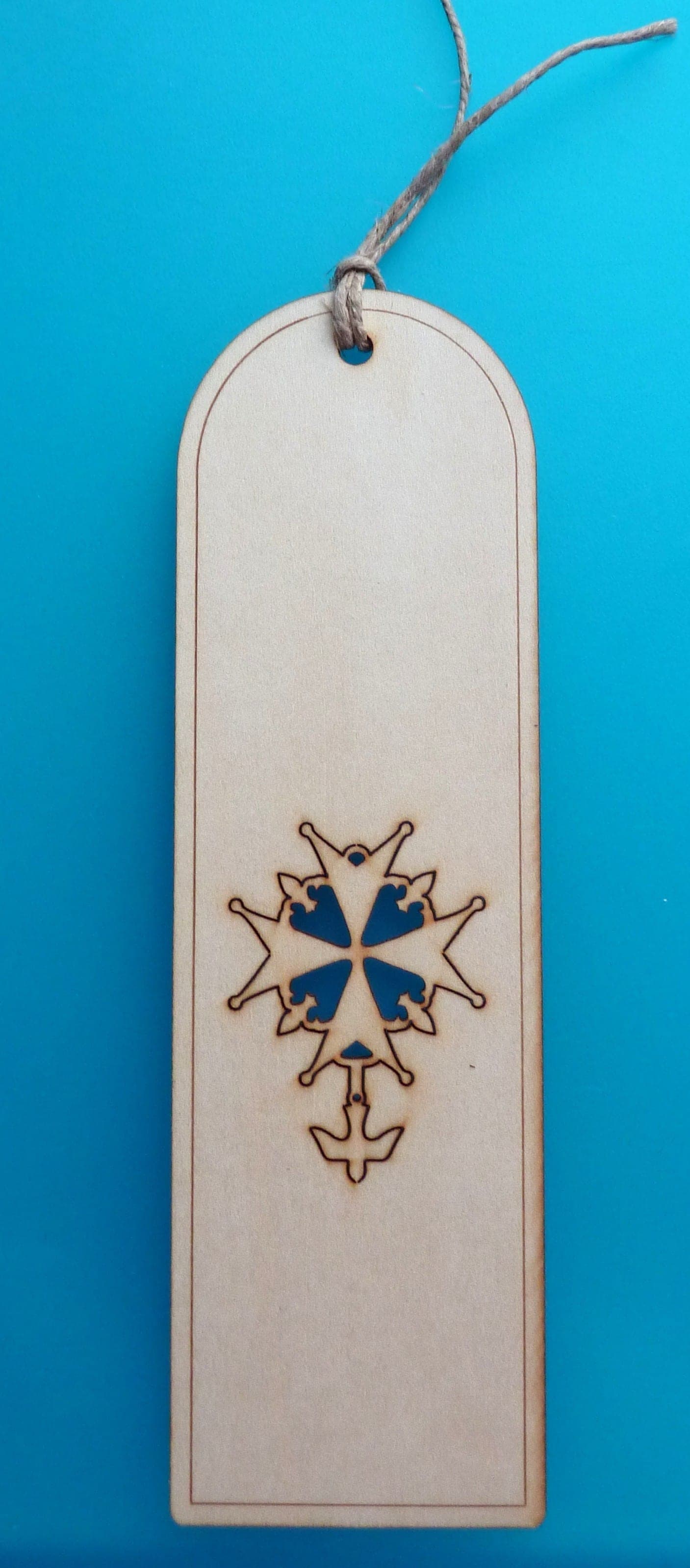
Three kinds of engraving: line, fill and image
The same wood can be engraved in three ways, and choosing the right mode is half the result:
- Line: tracing an outline at low power. Fast, good for outlines and ornaments.
- Fill: a closed vector shape is filled with parallel lines. This is how logos, lettering and any “flat” graphics are engraved, with crisp edges.
- Image: a raster photo is turned into dots (dithering). This is how photos and anything with shading and gradients are engraved.
The rule is simple: if the artwork exists as a vector, engrave it as a fill. Engraving a logo from a photo always gives a softer edge than its vector version.
How to engrave a logo and lettering on wood
- Request or prepare the logo as a vector (SVG, AI, PDF or DXF).
- Convert text to curves so the font cannot change.
- In LightBurn, set the layer to Fill mode.
- Choose a line interval of 0.08–0.1 mm: smaller gives a smoother surface but takes longer.
- Turn on bi-directional scanning to save time; overscanning cleans up the edges by letting the head accelerate before the beam fires. DSP controllers handle this in hardware, so LightBurn does not show the setting for them or for galvo lasers.
- Find speed and power with a test, then run the job.
Very thin fonts and tiny letters get lost in the wood grain. For small lettering, choose a bold, simple font and test it on a scrap first.
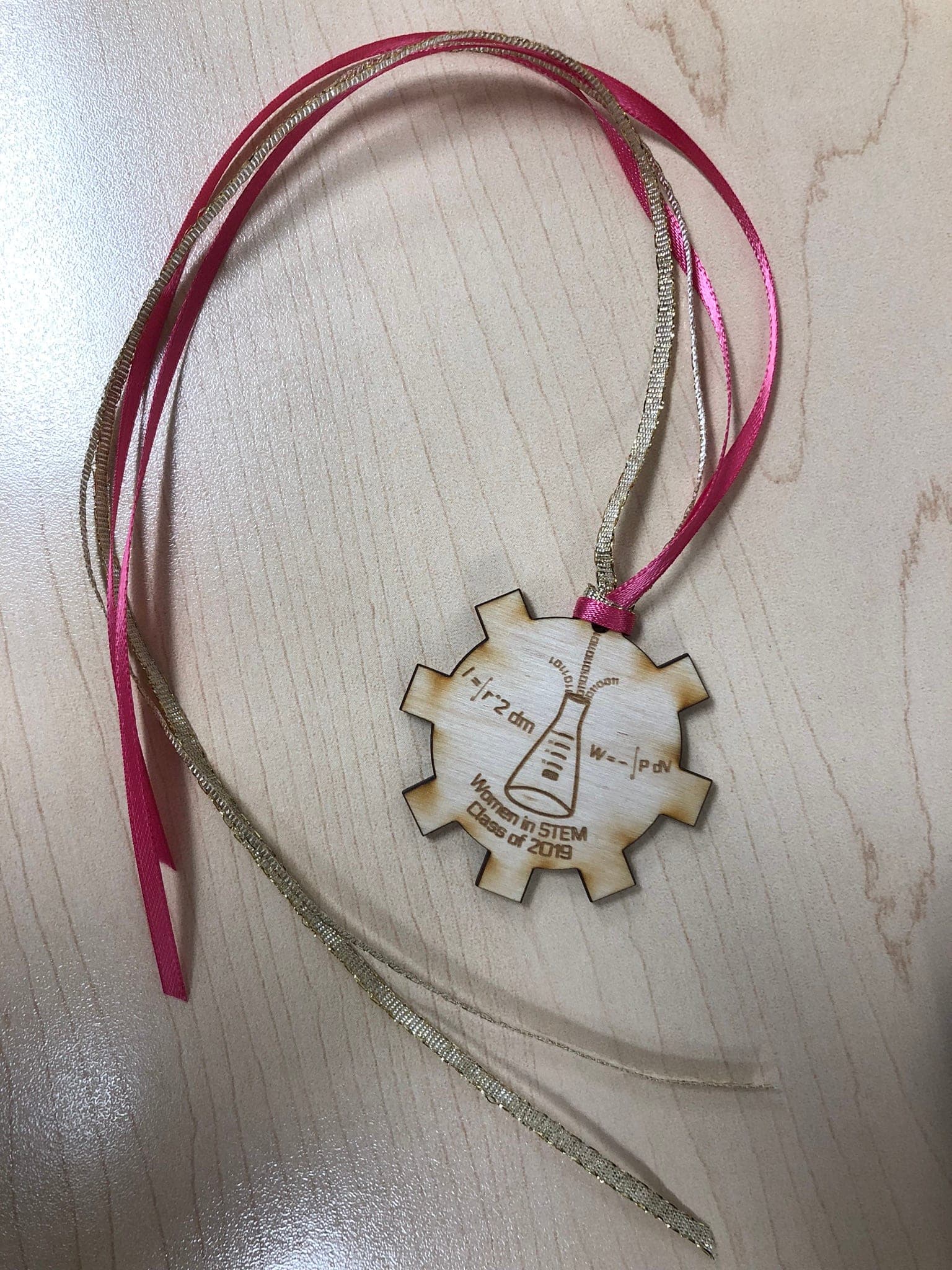
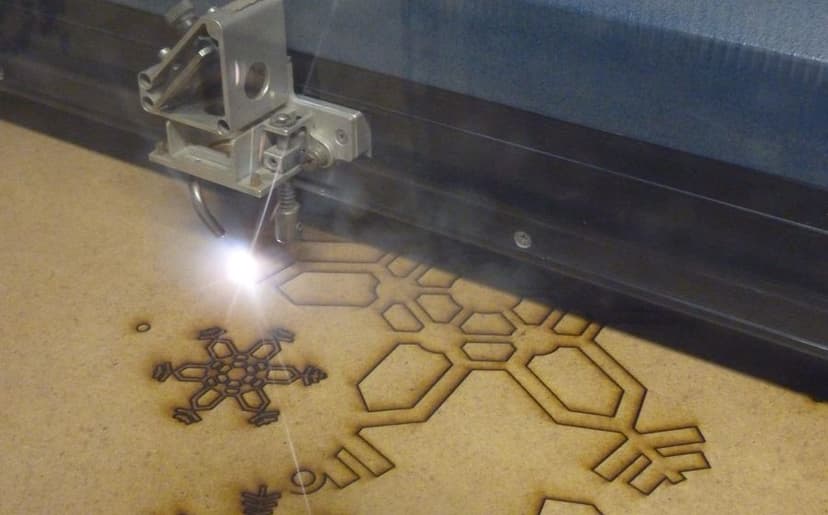
The photo shows clearly what smoke does to an unprotected surface: brown stains around the edges. Masking tape prevents this.
How to laser engrave a photo on wood: preparing the image
Photo engraving on wood depends above all on preparing the image. Wood is not paper: it has its own colour, grain and a limited tonal range. The steps:
- Pick the right photo. Sharp, well lit, with a large face or subject and a simple background.
- Crop. Keep only what matters; a face should fill much of the frame.
- Convert to black and white and raise the contrast. Midtones get lost on wood, so the photo should look slightly “harsh” on screen.
- Lighten or remove the background. A light background stays clean wood and saves time.
- In LightBurn, use Adjust Image to tune brightness, contrast and gamma.
Which dithering mode should you choose?
Dithering turns grey tones into individual dots: dense in dark areas, sparse in light ones. LightBurn offers several modes:
| Mode | Best for |
|---|---|
| Threshold | Images that are already black and white |
| Ordered | Large solid areas, logos, cartoon style |
| Atkinson | An in-between option for solid and smooth images |
| Dither, Stucki, Jarvis | Photos and smooth gradients |
| Newsprint, Halftone | A visible pattern, for high DPI |
| Sketch | Line drawings and handwriting |
| Grayscale | Varies power; variable depth on CO₂ |
For photos, Jarvis or Stucki are the usual picks. According to LightBurn’s documentation, Jarvis is usually the best choice for smooth shading and photos, and Stucki is also a good choice for the same kind of image. Try both on the same scrap and compare.
 Course at TDSLaser Cutting & Engraving6 weeks · 20 h · Starts 17 NovDetails
What DPI and line interval should you use?
The line interval is the distance between two engraving lines, and it sets the DPI: DPI = 25.4 ÷ interval (mm). For example, a 0.1 mm interval is 254 DPI, and 0.08 mm is about 318 DPI.
More DPI is not always better. If the interval is smaller than the laser’s dot, lines overlap, dots merge and the image comes out too dark and muddy. If the interval is too large, light stripes remain between lines. The right interval is where neighbouring lines just touch.
LightBurn recommends running an interval test between 120 and 300 DPI (0.08–0.2 mm) and choosing the value where lines just meet. The full photo engraving sequence is: focus, speed and power, interval, dot correction and finally image adjustment. On a CO₂ machine, dark engraving usually works better at slow speed and low power.
The test grid: speed and power for wood
Even two boards of the same species can engrave differently, so always test new wood. LightBurn’s Material Test creates a 10×10 grid of speed and power by default. For engraving, choose the square where:
- the colour is as dark as you want but the surface is not charred;
- the engraving is even and no banding shows;
- the edge is crisp, with no brown halo around it.
Record the result with the species, thickness and interval. Within a month this table will be your most useful file.
Finishing: masking, cleaning and oil
Before engraving, sand the surface smooth with fine sandpaper and, for resinous or very light wood, apply masking tape made for lasers. The laser cuts through the tape, and the smoke and resin stay on the tape, not on the wood. Masking is less practical for photo engraving, because peeling off thousands of tiny bits of tape is hard; there, good extraction and Air Assist matter more.
After engraving, remove the tape and wipe the soot off with a soft brush or a slightly damp cloth. On resinous and oily woods, clean residue promptly, before it sinks into the grain.
Finishing: oil, wax or varnish protect the wood, but often darken it and change the contrast. Try the finish on a test piece first. For a cutting board, use a finish intended for food contact.
Before engraving a photo, crop a 3×3 cm piece of it containing the face or the most important detail, and engrave only that on an offcut of the same wood. A five-minute test saves you from a half-hour mistake on the full file.
Common mistakes when engraving wood
- A photo straight from the phone. An unprepared photo comes out flat and dark on wood. Crop, contrast and background first.
- Too much power. Deeper engraving is not always better: the surface chars and detail disappears.
- Skipping the focus check. On a warped or different-thickness board the dot widens and the image blurs.
- Ignoring the grain. Place the photo so dark grain lines do not run across the face.
- Walking away from a long engrave. A photo can take half an hour and it is tempting to step out, but a flame can start at any moment. Stay with the machine and keep the exhaust running.
Frequently asked questions
What DPI do you need to engrave a photo on wood?
A good starting point is a 0.1 mm interval, or 254 DPI, but the exact value depends on your machine’s dot size. Run an interval test between 120 and 300 DPI and choose the value where lines just touch.
Why does my photo come out too dark on wood?
Usually the interval is too small or the power too high, so the dots merge. Increase the interval, lower the power, raise brightness slightly in Adjust Image and use lighter wood.
How long does laser engraving take?
It depends on area, interval and speed. For example, a 100×100 mm area at a 0.1 mm interval is 1,000 lines; at 300 mm/s that is about 6 minutes, not counting acceleration and overscan. LightBurn’s Preview shows the exact time in advance.
Can you engrave a photo on plywood?
Yes, photos come out well on birch plywood, because the surface is light and smooth. Avoid plywood with patches or joins in the top veneer, and check that the face veneer is thick enough.
Can a diode laser engrave wood?
Yes, engraving wood and leather is one of a diode laser’s strengths. The differences from CO₂ lie mainly in cutting and in the range of materials; see CO₂ or diode laser.
Next step
Engraving photos on wood is a skill that improves with testing and practice. On the Laser Cutting & Engraving course in Tbilisi, week five is devoted to engraving: DPI, dithering and a photo-engraved board. For more project ideas, see 15 laser cutting ideas.
Sources
- Cut Settings: Image, LightBurn Documentation
- Perfect Image Engraving, LightBurn Documentation
- Material Test, LightBurn Documentation
- Best wood for laser engraving, Thunder Laser
- Prohibited laser cutter materials, Emory University
- Laser Cutters, University of Illinois Division of Research Safety