









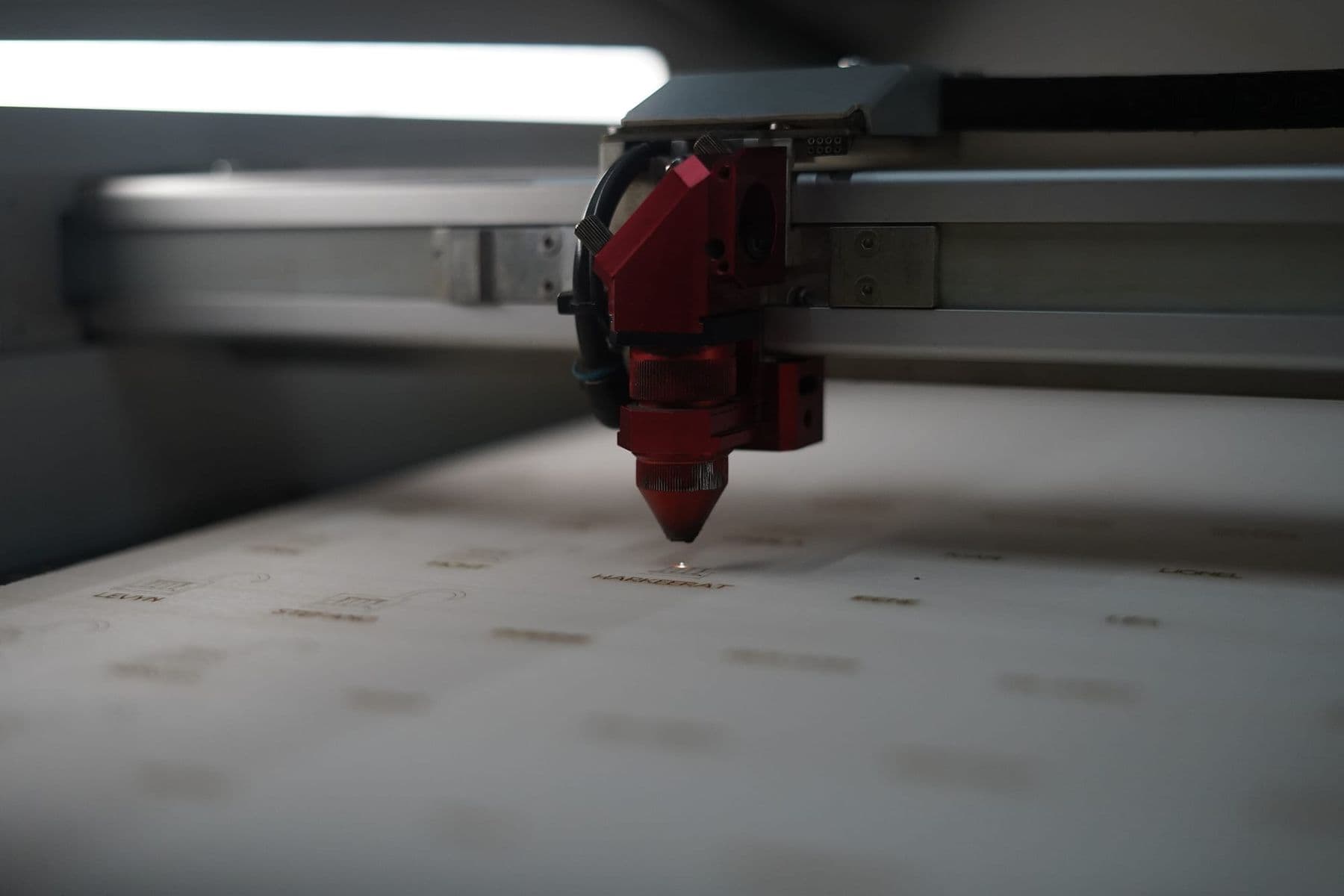
LightBurn is laser software that sends your file to the machine and tells it where to cut, where to engrave, and at what speed and power. Getting to a first cut takes six steps: install the program, add your laser, import an SVG or DXF file, split it into layers by colour, run a material test, and start the job after framing it.
LightBurn runs on Windows and macOS and talks to small diode lasers as well as workshop CO₂ and galvo machines. You can draw simple shapes in it, but complex designs are usually made in a vector editor and only imported into LightBurn.
Below we go through each step, and at the end list the mistakes beginners make most often. Prices and licence terms are given as of 2026; check them on lightburnsoftware.com before you buy.
What is LightBurn, and how much does it cost?
LightBurn comes in two editions. Which one you need depends on your machine’s controller, not on the type of laser.
| Item | LightBurn Core | LightBurn Pro |
|---|---|---|
| Controllers | GCode: GRBL, Marlin, Smoothieware | All of Core + DSP and galvo: Ruida, TopWisdom, Trocen, EZCad2/3, BSL, Epilog |
| Typical machine | Hobby and diode lasers | Workshop CO₂ and galvo machines |
| Price (2026) | USD 99, one-time | USD 199, one-time |
| Updates | 1 year, then USD 40 a year | Same |
| Computers | 3 at a time | 3 at a time |
The licence is perpetual: when the update year ends the program keeps working, you just cannot use versions released after that date. Upgrading from Core to Pro costs USD 100. Before buying you can download a 30-day trial, which is the full program with no restrictions and no watermarks. If your CO₂ machine has a DSP controller such as Ruida, Core will not work and you need Pro.
How to install LightBurn and add your laser
- Download LightBurn from the official site (lightburnsoftware.com) and install it.
- Switch on the machine and connect it to the computer.
- Open the Devices window and click Find My Laser: LightBurn looks for the machine itself. If it does not find it, choose Create Manually and set the controller type, connection and bed size (for example, 1300×900 mm).
- Set which corner is the machine’s origin.
- Jog the head a little from the Move window and check that it moves in the right direction.
If the design looks one way on screen but cuts out mirrored on the machine, the origin corner is set wrong. It is one of the first problems beginners hit, and it is fixed in Device Settings.
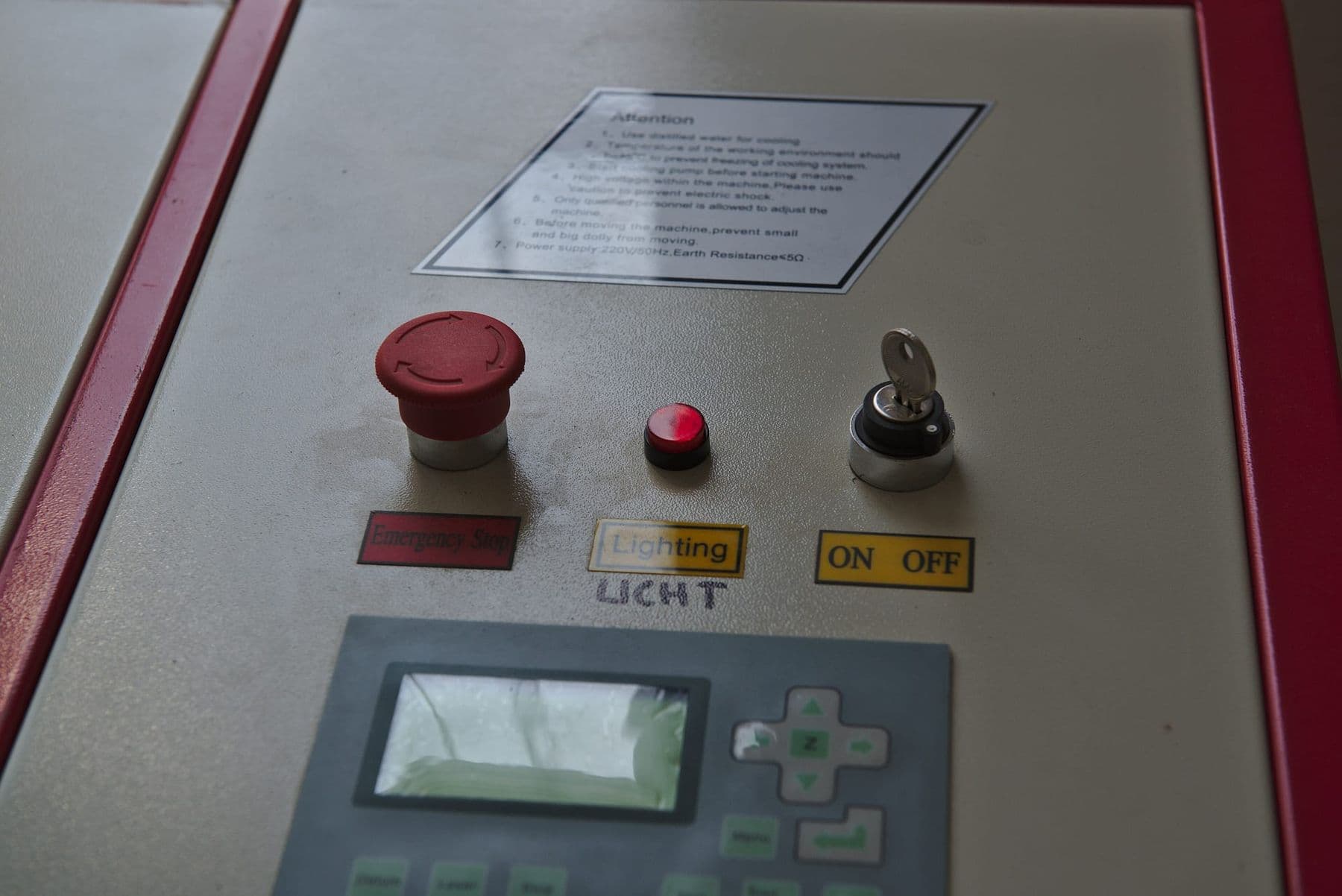
While you learn the software, learn the machine’s panel too: where the emergency stop is, and how the exhaust and Air Assist switch on.
How to import SVG, DXF and other files
LightBurn reads vector formats (SVG, DXF, AI, PDF, PLT/HPGL) and images (PNG, JPG, BMP, GIF, TIFF). Import a file with File → Import, Ctrl+I (Cmd+I on a Mac), or simply drag it into the window.
Four rules for preparing files:
- Text to curves. LightBurn cannot read fonts embedded in a file, so convert text to curves (paths) beforehand.
- Closed shapes. Fill engraving only works on closed shapes; an open line stays empty.
- Check the size. After importing, check the dimensions with the ruler: a DXF sometimes comes in with different units and the drawing ends up 10 or 25.4 times too big or too small.
- Duplicate lines. Two lines on top of each other cut the same place twice and burn the edge. The Delete Duplicates command in the Edit menu removes them.
Files are drawn in CorelDRAW, Adobe Illustrator or the free Inkscape. For which program to start with, read design software for beginners.
Layers and colours: cut, score and engrave
In LightBurn a colour means a layer, not the colour of the finished product. Every line of one colour is processed with the same settings. Each layer gets one mode:
| Mode | What it does | When to use it |
|---|---|---|
| Line | Follows the outline | Cutting and scoring |
| Fill | Fills a closed shape with parallel lines | Engraving text and logos |
| Offset Fill | Fills a shape with lines parallel to its outline | Rare, special cases |
| Image | Engraves a raster image | Photo engraving |
Layers run in the order they appear in the Cuts / Layers window, and you can reorder them by dragging. A good order is: engraving first (Image and Fill), then scoring, then inner contours and finally the outer contour. If a part is cut free first, it can shift and the holes end up in the wrong place. The optimisation settings also have a Cut inner shapes first option for this.
Photo engraving is a topic of its own (DPI, dithering, image preparation), covered in detail in laser engraving on wood.
 Course at TDSLaser Cutting & Engraving6 weeks · 20 h · Starts 17 NovDetails
Speed and power: how to run a material test
Two settings decide almost everything: power (%) and speed. More power or less speed gives a deeper cut and darker engraving, but also scorched edges, more smoke and a wider kerf.
The right values come from testing. In the Laser Tools menu choose Material Test: by default it creates a 10×10 grid, with speed changing by row and power by column. You can also vary line interval or the number of passes.
- Use a real piece of your material and set the focus.
- For cutting, find the lowest power and highest speed that reliably cut through.
- If the edges scorch or melt, add a pass instead of raising the power.
- For engraving, pick the square where the colour is right and the surface is not charred.
- Enter the best result in the layer settings and save it to the Material Library.
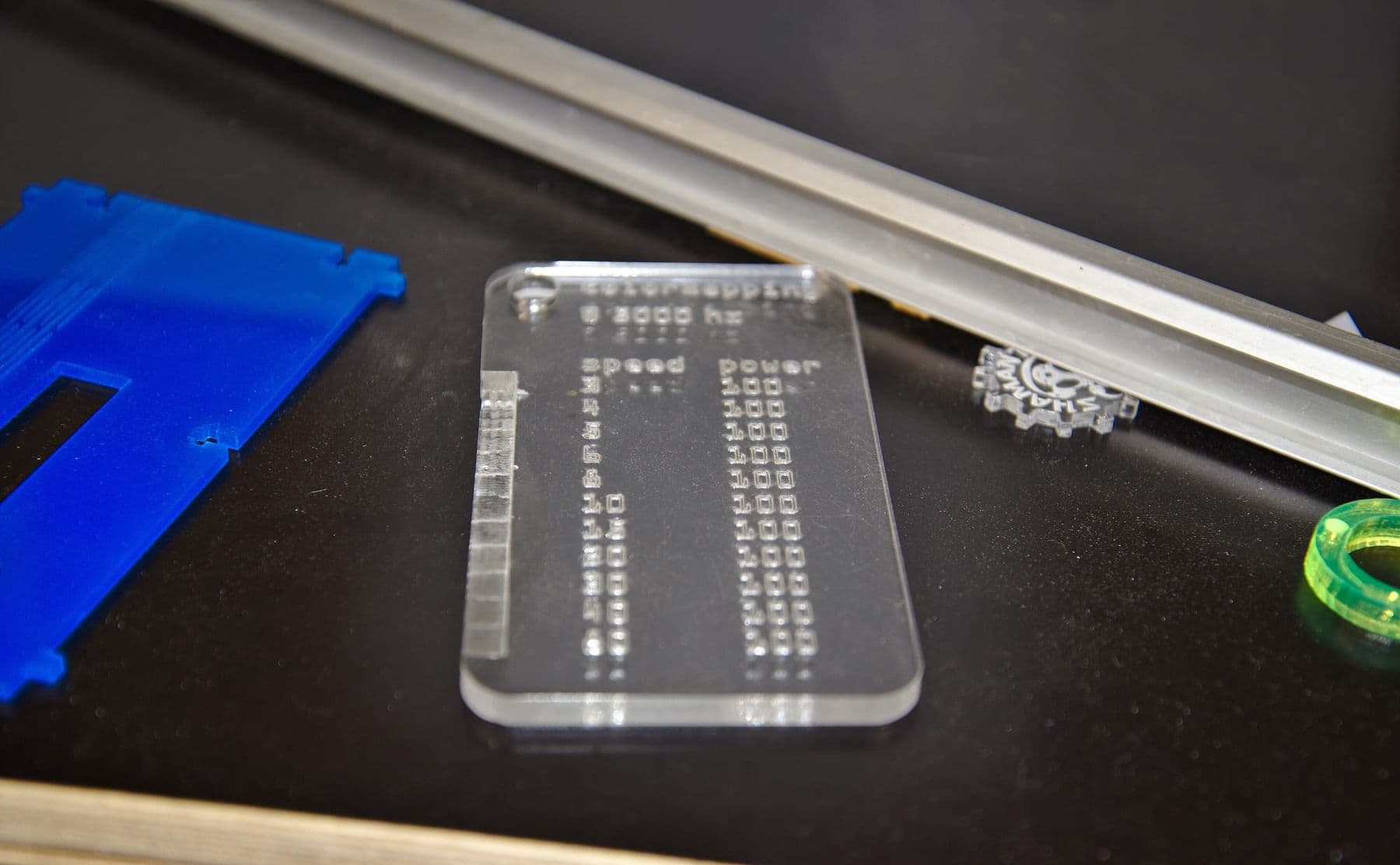
Watch the units. mm/s and mm/min differ by a factor of 60. Enter a setting you found online in the wrong unit and you get either a very weak cut or a dangerously slow, overpowered job. Units are changed in the Units and Grids tab of Settings.
Focus, framing and the job origin
Focus before every new sheet, using your machine maker’s method (a focus gauge or autofocus). Wrong focus is the most common reason a laser does not cut through.
Start From decides where on the sheet the job begins:
- Absolute Coords: the design is cut where it sits in LightBurn’s workspace. Often the most intuitive mode for beginners.
- Current Position: the job starts from wherever the head is when you press Start.
- User Origin: you define the starting point beforehand and the machine remembers it.
In the last two modes, the 9-dot Job Origin selector decides which point of the design lines up with the head (for example, the top-left corner or the centre).
Before you press Start, press Frame: the head traces the outer boundary of the job so you can see whether the design fits on the sheet. The Preview window shows the whole beam path and the estimated job time.
Your first cut: a checklist
- The material is known and safe (not PVC, not vinyl).
- The sheet lies flat and its thickness has been measured.
- Focus is set.
- Exhaust and Air Assist are on.
- Layer order is right: engrave, score, inner, outer.
- Settings come from a test, and units have been checked.
- Start From and Job Origin are set correctly.
- Frame shows the design fits on the sheet.
- Preview shows a sensible path and time.
- You stay with the machine until the job is finished.
Make your first job a 20 mm square and a circle, not the real file. In one minute you check the origin, direction, focus and cut depth, and measuring the cut square tells you your kerf.
The most common beginner mistakes in LightBurn
| Mistake | What happens | How to fix it |
|---|---|---|
| Mixing up mm/s and mm/min | Weak cut or too much heat | Check Units and Grids |
| Text not converted to curves | Letters missing or changed | Convert text to curves first |
| Duplicate lines | The same spot is cut twice | Edit → Delete Duplicates |
| Wrong Start From | The design misses the sheet | Frame before starting |
| Open contour on a Fill layer | No fill | Close the shape |
| Outer contour before inner | Holes end up misplaced | Layer order or Cut inner shapes first |
| More power instead of passes | Burnt edges | Add a pass |
Frequently asked questions
Is LightBurn free?
No, LightBurn is paid software, but it has a full 30-day trial. As of 2026, Core costs USD 99 and Pro USD 199, each with a year of updates.
Should I buy LightBurn Core or Pro?
It depends on the controller. GRBL, Marlin and Smoothieware controllers (mostly diode and small machines) only need Core. Ruida, TopWisdom, Trocen and galvo controllers need Pro. If you are not sure, try Find My Laser with the trial.
Does LightBurn work on a Mac?
Yes, LightBurn is available for Windows and macOS. One licence can be active on three computers at a time.
Can you design in LightBurn?
Simple shapes, text and basic editing can be done in LightBurn. For complex work, such as a logo or a multi-part box, a vector editor is more comfortable.
Why doesn’t my laser cut all the way through?
The usual causes are wrong focus, too much speed, a dirty lens or mirror, and a warped sheet. Check the focus first, then find the settings with a test.
Next step
LightBurn is quick to learn with a real machine next to you. On the laser cutting and engraving course in Tbilisi a whole week goes to LightBurn: layers, cut order, focus and Air Assist on a 100 W CO₂ laser. See the full syllabus on the course page.
Sources
- Which version of LightBurn is right for you?, LightBurn Software
- Download LightBurn, LightBurn Software
- License & FAQs, LightBurn Documentation
- Creating and Importing Artwork, LightBurn Documentation
- Colors and Layers, LightBurn Documentation
- Coordinates and Job Origin for beginners, LightBurn Documentation
- Material Test, LightBurn Documentation
- Speed vs Power, LightBurn Documentation