








Tinkercad is Autodesk's free, browser-based 3D design program, where you build models from ready shapes: boxes, cylinders, text and "holes". In this tutorial you will design a personalised keychain in about 20 minutes: a base, a hole for the ring, a name on top, grouping and export to STL. You can then print it on any FDM 3D printer.
Tinkercad is the best first step into 3D modelling for kids and adults alike. There is nothing to install; a computer and an internet connection are enough. And the ideas you learn here (dimensions, holes, alignment, grouping) carry straight over to Fusion 360 and other CAD programs.
What do you need to start?
- A computer with a modern browser (Chrome, Edge, Firefox or Safari).
- A mouse with a scroll wheel: a trackpad works, but a mouse is much faster.
- A free Tinkercad account. Children under 13 usually join through a teacher's class code and nickname, or with a parent's consent.
- Optional: a 3D printer, or a nearby lab where you can print your model.
The Tinkercad screen explained
When you open a new 3D design you see a blue grid in the middle, the shapes panel on the right and a toolbar along the top. The key terms (Tinkercad updates sometimes move a button slightly):
| Element | Where | What it does |
|---|---|---|
| Workplane | Centre of the screen, blue grid | The table you place shapes on |
| Shapes | Right panel | Ready forms: Box, Cylinder, Text and more |
| Solid / Hole | Shape properties window | A shape is either material or removes material |
| Group | Top toolbar, Ctrl + G | Merges shapes; holes cut at this moment |
| Align | Top toolbar, L | Lines shapes up by centre or edge |
| Ruler | Top toolbar, R | Shows exact distances |
| Snap Grid | Bottom-right corner | The step a shape moves by |
| Export | Top-right corner | Saves an STL for printing |
Moving the view: right mouse button orbits, the wheel zooms, the middle button (press the wheel) pans. Press F to centre the selected shape.
Step by step: a name keychain
Final size: a 50 × 20 × 3 mm base, a 5 mm hole and a name 2 mm high on top. It fits in a pocket and prints quickly.
Step 1: create a new 3D design
Go to tinkercad.com, click Create and choose 3D Design. The project gets a random funny name: click it in the top-left corner and rename it, for example "keychain-nino". Set the Snap Grid in the bottom-right corner to 1.0 mm.
Step 2: the base with a Box
Drag a Box from the right panel onto the workplane. Click the shape, then a white corner handle: dimension fields appear. Type length 50 and width 20, then click the white handle on top and set height 3. In the properties window set Radius to 1 so the edges are slightly rounded and kind to your hand.
Step 3: a hole for the ring
Drag in a Cylinder and make it 5 × 5 mm, 10 mm tall (a hole should be taller than the base so it cuts all the way). In the properties window choose Hole, or press H: the cylinder turns see-through and striped. Place it at the left end of the base, leaving at least 3 mm between the hole and the edge, or that spot will snap.
Step 4: the name with Text
Find Text in the shapes panel and drag it in. Type the name in the properties window and pick a bold font. Size it to roughly 34 mm long and 12 mm wide (it has to fit on the base to the right of the hole), with a height of 2 mm.
If your chosen font does not show the letters you need (for example Georgian script), write the name in Latin letters, or prepare the lettering as an SVG in another program and bring it in with Import: Tinkercad turns a flat SVG into a solid.
Step 5: put the name on the base and align it
The text sits on the workplane while the base is 3 mm tall. Select the text and lift it exactly 3 mm with the black cone on top, or press Ctrl + Up arrow until it rests on the base. Another way: press W to place a workplane on the top face of the base and drag the text onto it.
Now select both the base and the text (Shift + click), press L (Align) and click the middle dot on the width axis: the text centres on the base. Along the length, position the text by hand to the right of the hole.
Step 6: group
Select everything (Ctrl + A) and click Group, or press Ctrl + G. Newer versions of Tinkercad offer several group types: Ctrl + G is the standard Union group, which is what you need here. The hole now really cuts the base, and text and base become one solid. Note: before grouping, a hole is only an instruction and will not cut material in the exported file.
Step 7: check the dimensions
Press R to drop a Ruler on a corner of the base and check: 50 × 20 mm and 5 mm total height. Orbit the view and look from below too: the text must touch the base, not float in the air. The thinnest stroke of any letter should be at least 0.8 mm (two lines from a 0.4 mm nozzle), or the printer will not print it.
Step 8: export to STL
Click Export in the top-right corner, choose all shapes and the .STL format. The file downloads to your computer. The design also stays saved in Tinkercad, so changing the name and exporting a new file later takes a minute.
How do you 3D print a Tinkercad model?
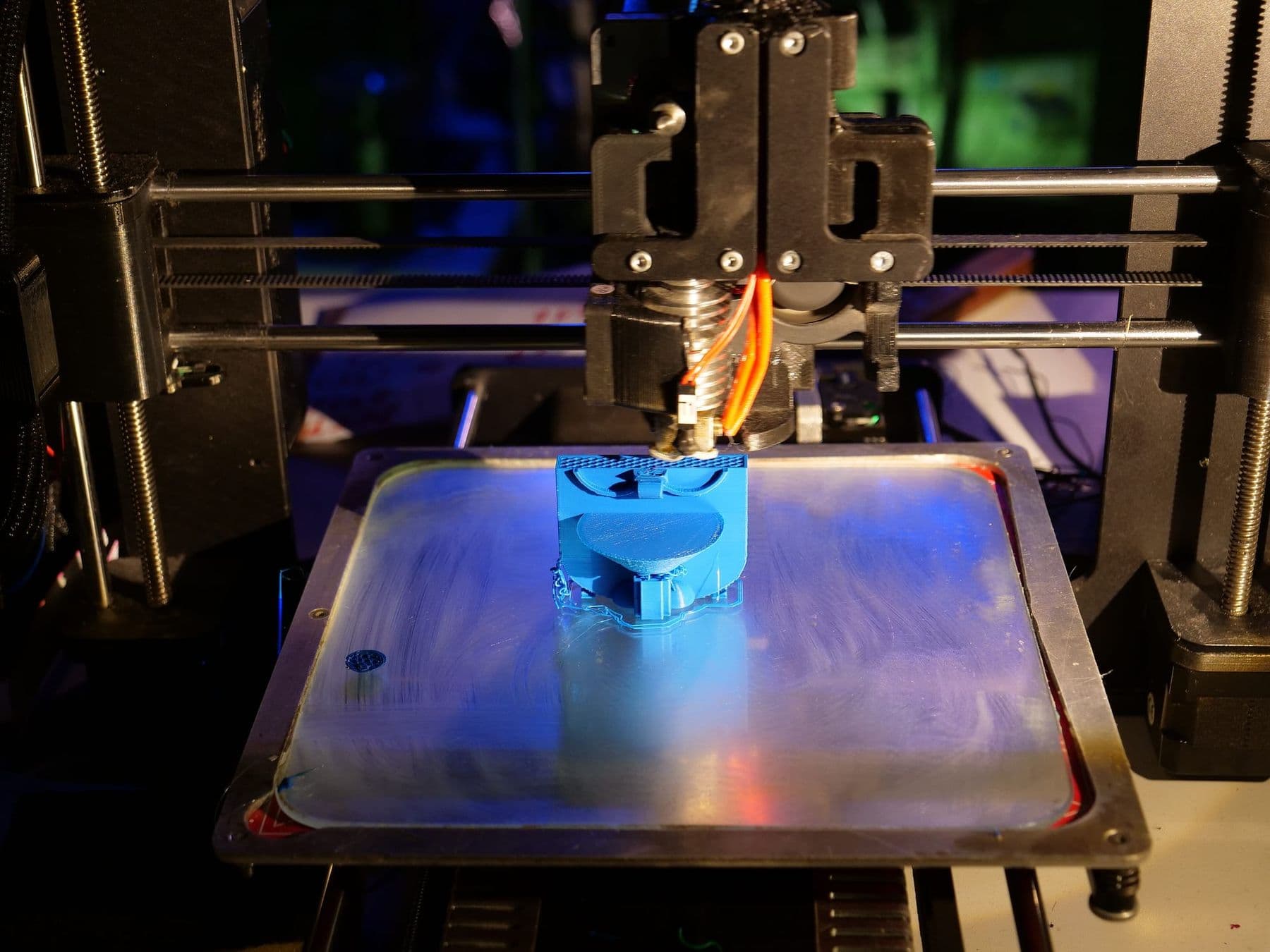
Tinkercad creates the model but not the printer instructions. Open the STL in a slicer (Bambu Studio, PrusaSlicer, OrcaSlicer or Cura) and set:
- material: PLA;
- layer height: 0.2 mm (lettering looks nicer at 0.12–0.16 mm);
- infill: 15%;
- supports: none, the keychain lies flat;
- orientation: text facing up.
A two-colour trick: on the slicer's layer slider, add a colour change where the text begins (at 3 mm). The printer pauses there, you swap filament and the name prints in another colour. You do not need a multicolour system for this.
Where to find ready models and how to choose a slicer is covered in free STL files and slicers.
Tinkercad 3D design: 5 projects with the same technique
Base, hole, text, align and group: these five moves make plenty of useful objects. Try them in order:
- Backpack name tag: the same keychain at 70 × 30 mm with two slots for a strap.
- Bookmark: a thin 1.5 mm plate with cut-out (Hole) letters or stars.
- Door sign: a large base, a raised name and two screw holes.
- Pencil cup: a cylinder with a slightly narrower cylinder-hole inside, leaving a 2 mm floor.
- Phone stand: triangular prisms (Roof or Wedge shapes) and a slot 1 mm wider than the phone.
For every project, write the dimensions on paper first, then open Tinkercad. That habit speeds up your modelling noticeably.
Common Tinkercad mistakes
- Hole not grouped: the hole is missing in the STL. Select base and hole together and press Ctrl + G.
- Floating text: it shows as a separate layer in the slicer or disappears. Lift it exactly to the base height.
- Font too thin: letters print only partly. Choose a bold font or make the text bigger.
- Hole too close to the edge: the keychain breaks there. Leave at least 3 mm.
- Wrong scale: the model is tiny in the slicer. Units in Tinkercad should be millimetres: check the grid settings in the bottom-right corner (Edit Grid or Settings, depending on the version).
Tinkercad Circuits: electronics in the browser
Tinkercad is not only 3D design. In Circuits you build electronic circuits on a virtual breadboard (LEDs, resistors, buttons, Arduino) and run a simulation to see whether they work. It is a safe way to start electronics before touching real parts. For building a real circuit, see your first breadboard circuit.
Tips for teachers: Tinkercad in the classroom
Tinkercad suits schools well. Some practical advice:
- Create a class and add students by nickname: they need no email and sign in with the class code.
- Start with strict dimensions: "50 × 20 × 3 mm, no bigger". It teaches working with numbers and saves print time.
- Plan printing ahead: if one keychain takes about half an hour, 25 students' work needs more than 12 hours on one printer. Print several keychains together on one bed.
- Assess by measuring: check with calipers how closely the printed size matches the plan.
- Pairs work well: one designs, the other checks dimensions, then they swap.
Before students move to complex models, ask them to design the same keychain twice: once by eye, once with exact dimensions and Align. Comparing the two prints explains why dimensions matter better than any lecture.
What comes after Tinkercad?
Once you have printed three or four of your own designs, you will probably feel Tinkercad's limits: complex curves, precise tolerances and dimensions that depend on each other. That is the moment to move to Fusion 360. A full comparison is in 3D modelling software compared.
For teens aged 13–17, the TDS "3D Printing and Modelling" course follows exactly this path: from Tinkercad to Fusion 360, with printer calibration and a final product built from the student's own idea. How the learning is structured and how to support your child at home is in 3D modelling course for kids. This course and the adult one are both on our 3D printing courses page.
 Course at TDS3D Design and Printing: From Tinkercad to Fusion 3607 months · 3 phases · 72 h · Starts 24 NovDetails
Frequently asked questions
Is Tinkercad free?
Yes. Tinkercad is free and runs in the browser with nothing to install; you only need an account. Students can join a teacher's class with a code and a nickname.
What age can kids start Tinkercad?
Building with shapes is simple enough for primary school children if an adult helps and manages the account. Working independently with dimensions, alignment and holes usually comes at about age 10.
How do I save a Tinkercad model as an STL file?
Click Export in the top-right corner and choose .STL. Before exporting, make sure holes are grouped and no text or parts are floating in the air.
Can I write non-Latin text in Tinkercad?
It depends on the font. If your letters do not appear, prepare the lettering as an SVG in another program and bring it in with Import, or write the name in Latin letters.
What is Tinkercad Circuits?
The part of Tinkercad where you build and test electronic circuits virtually: LEDs, resistors, sensors, Arduino and its code. It is a good way to learn electronics and programming together.
Tinkercad or Fusion 360: which should I start with?
Tinkercad, if you are trying 3D modelling for the first time or learning with a child. Move to Fusion 360 when you need precise parts that fit together.
Print your first keychain, then change one thing: the shape, the hole position or the lettering style. If you are looking for your child's next step, see the 3D Printing and Modelling course or contact us for a free consultation.
Sources
- Tinkercad keyboard shortcuts, Autodesk Tinkercad
- Tinkercad Learning Center, Autodesk
- Tinkercad to 3D printer: export and print, SimplyPrint
- Joining a Class on Tinkercad, Yarra Hills Secondary College
- Layers and perimeters, Prusa Knowledge Base