














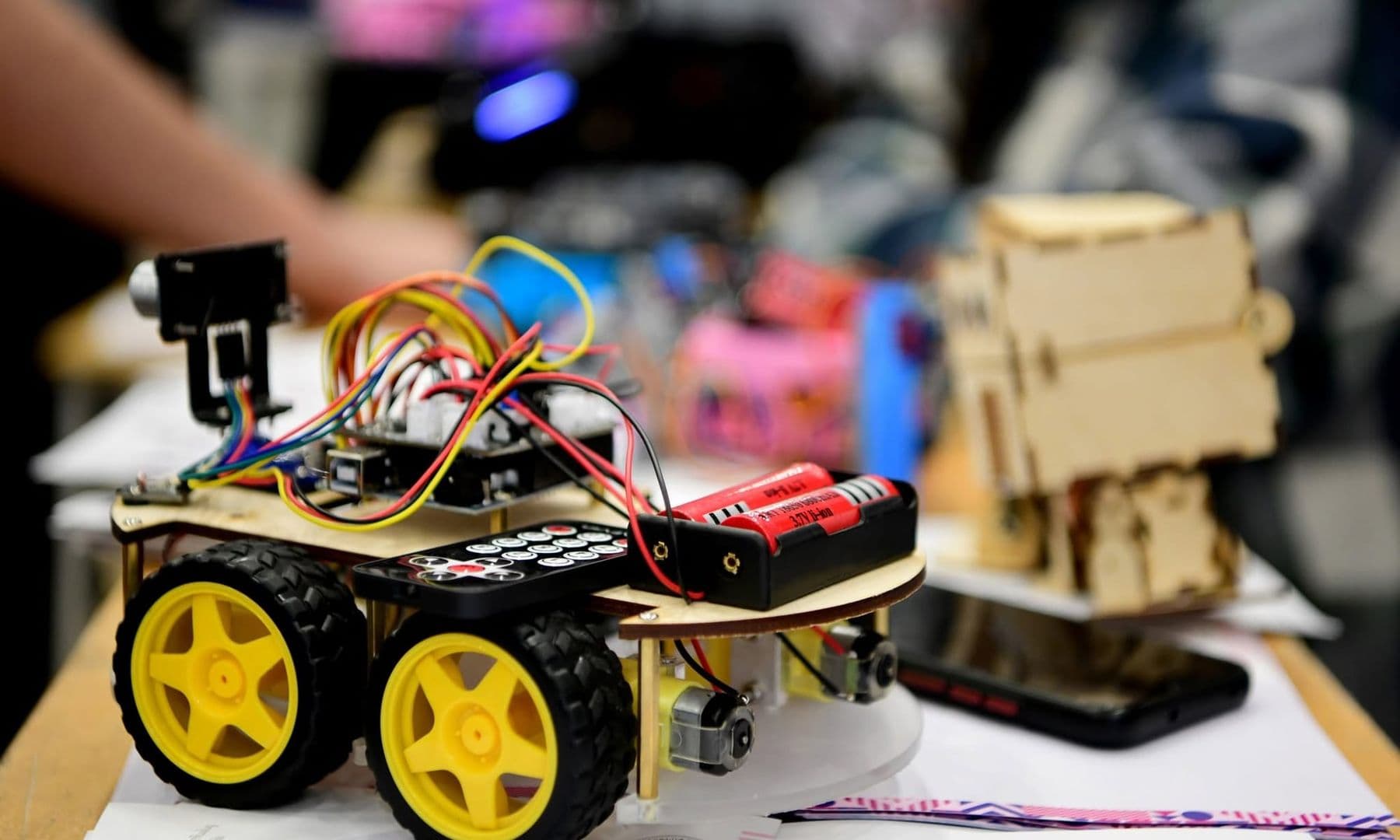
You can build your first robot at home in one or two evenings. You need a two-wheel chassis with two motors, an Arduino Uno, an L298N motor driver, an HC-SR04 ultrasonic sensor and two 18650 cells. Wire the parts together, upload the code below, and you get a robot car that drives forward, spots an obstacle 20 cm away and steers around it.
This guide is written for complete beginners. You hardly need any soldering and no prior electronics knowledge. A 10–12-year-old can do it with an adult's help; teens and adults can do it alone. Every part and every wire is listed in a table, and every line of the code is commented.
What robot are we building and how does it work?
We are building an obstacle-avoiding robot car. Like every robot, it works in three steps:
- Sense. The HC-SR04 sends out an ultrasonic ping and times the echo, which gives the distance to an object between 2 cm and 4 m.
- Think. The Arduino checks the distance about ten times a second. If something is closer than 20 cm, it decides to stop, back up and turn.
- Act. The L298N driver turns the Arduino's weak signals into enough current to spin both wheels forwards or backwards.
There is no steering wheel. When one wheel turns forwards and the other backwards, the robot spins on the spot. This is called differential drive, and most robot vacuums move the same way.
What parts do you need to build a robot?
Most of these parts are sold together as a “2WD smart robot car chassis kit”, and the rest are often included in an Arduino starter kit. For a detailed comparison and approximate prices, see our guide to robot components for a first project.
| Part | Qty | What it does |
|---|---|---|
| 2WD chassis (plate, 2 TT gear motors, 2 wheels, caster) | 1 kit | Body and movement |
| Arduino Uno (original or compatible) + USB cable | 1 | The robot's brain |
| L298N motor driver | 1 | Powers and reverses the motors |
| HC-SR04 ultrasonic sensor | 1 | Measures distance |
| 18650 Li-ion cell (ideally protected) + 2-slot holder | 2 + 1 | Power, 7.4 V in total |
| Li-ion charger for 18650 cells | 1 | Charging the cells safely |
| Power switch | 1 | On/off without unplugging wires |
| Jumper wires (male-female, plus a few male-male) | 15–20 | Connections |
| Screws, standoffs, double-sided tape | a few | Mounting |
Tools: a small Phillips screwdriver, wire cutters and, ideally, a multimeter. Some kits ship TT motors without wires, so you solder two short leads to each motor. Our soldering for beginners guide shows how to do it safely.
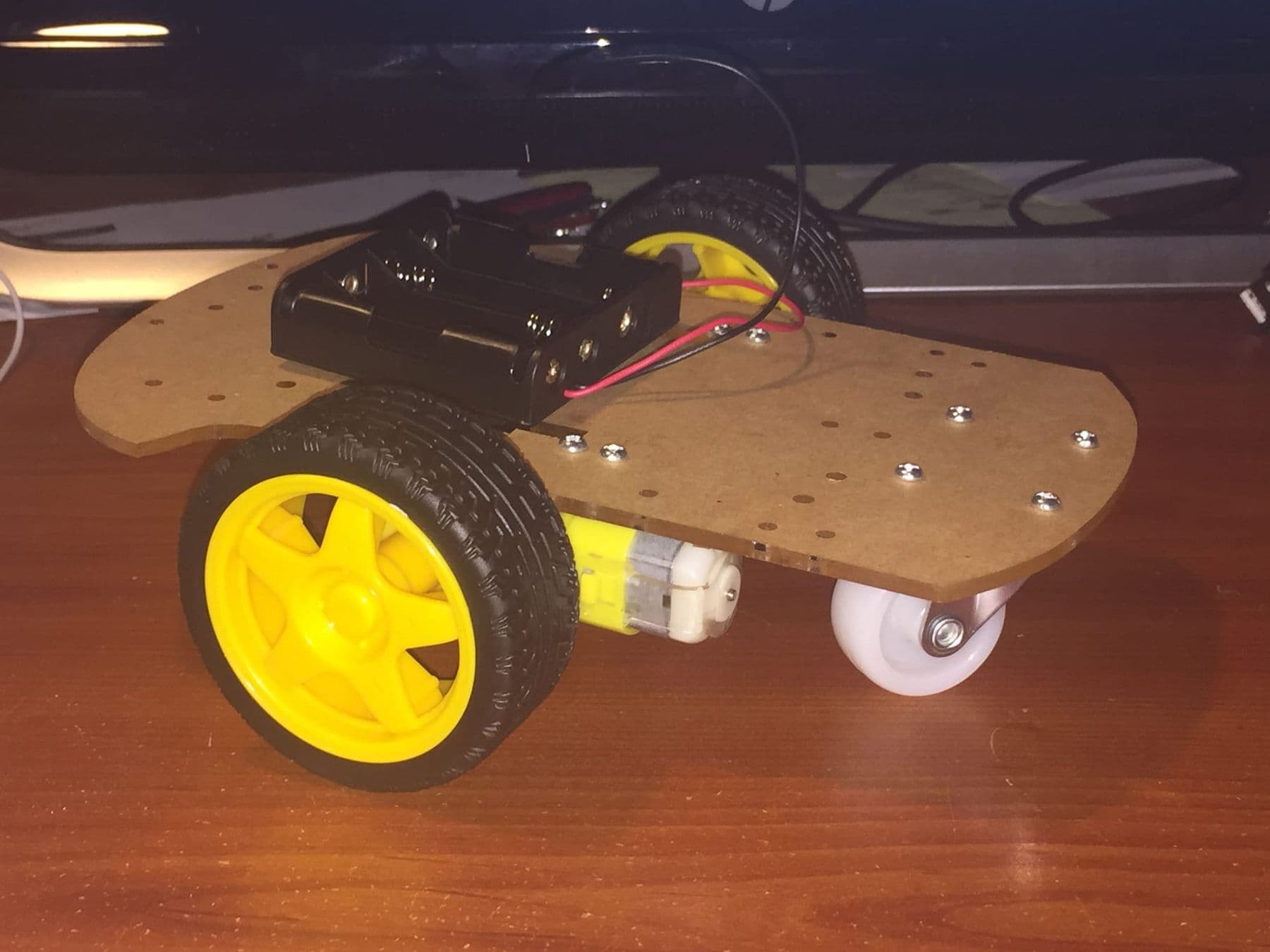
How to assemble the chassis in 7 steps
- Attach wires to the motors if needed, then screw both motors to the underside of the plate with the shafts pointing out.
- Push the wheels onto the motor shafts firmly but carefully. A crooked wheel makes the robot drift.
- Mount the caster wheel on standoffs at the front or back so the plate sits level.
- Fix the battery holder on top, as close to the wheel axle as possible; the heavy cells keep the robot stable.
- Mount the Arduino and the L298N on standoffs or double-sided tape. The bottom of a board must never touch metal, or you get a short circuit.
- Fix the HC-SR04 at the front edge, “eyes” forward, 5–10 cm above the floor and angled slightly up; a sensor that points down “sees” the floor.
- Put the switch in the battery's positive wire so you can cut power without pulling wires.
Wiring table: which wire goes where
Wire everything exactly as listed; the code uses these pins. First, remove the small jumpers on the L298N's ENA and ENB pins. If you leave them on, the motors always run at full speed and the code cannot control their speed.
| Component pin | Connects to | Note |
|---|---|---|
| L298N ENA | Arduino D5 | Left motor speed (PWM) |
| L298N IN1 / IN2 | Arduino D7 / D8 | Left motor direction |
| L298N ENB | Arduino D6 | Right motor speed (PWM) |
| L298N IN3 / IN4 | Arduino D4 / D2 | Right motor direction |
| L298N OUT1 / OUT2 | Left motor | Spins backwards? Swap its two wires |
| L298N OUT3 / OUT4 | Right motor | Same rule |
| L298N +12V | Battery + after the switch | 7.4 V; keep the 5V jumper on |
| L298N GND | Battery − and Arduino GND | Common ground is essential |
| Arduino VIN | Battery + after the switch | Powers the Arduino |
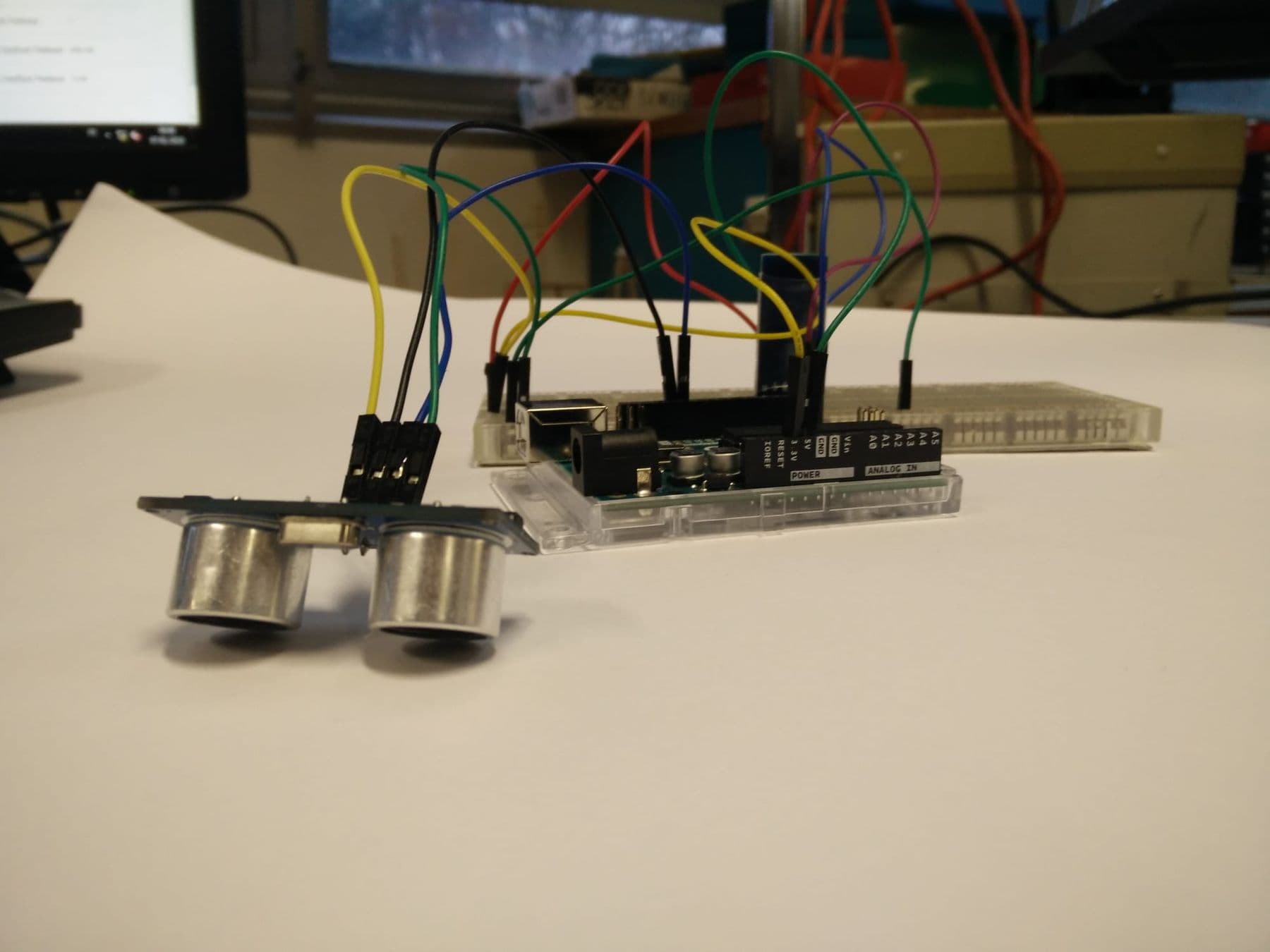
| HC-SR04 VCC / GND | Arduino 5V / GND | |
| HC-SR04 Trig / Echo | Arduino D12 / D11 |
Why two 18650 cells? In series they give 7.4 V nominal. The L298N loses about 2 V internally, so roughly 5–6 V reaches the motors, which is right for TT motors rated 3–6 V. The Arduino's recommended VIN range is 7–12 V, so charged cells power it too.
The most common mistake is forgetting the common ground. If the Arduino GND and the L298N GND are not connected, the driver cannot read the Arduino's signals and the motors behave strangely. If wiring is new to you, start with your first circuit on a breadboard.
Lithium-ion cells are powerful and do not forgive mistakes. Charge them only with a proper Li-ion charger and never leave them charging unattended. Children charge cells only together with an adult. Use two identical, equally charged cells, ideally protected ones. Never connect plus and minus directly, not even for a second. Remove any damaged, swollen or dented cell at once and take it to a battery collection point. Always switch the power off before you change any wiring.
Arduino code for an obstacle-avoiding robot
If you have never used the Arduino IDE, install it from arduino.cc and try a simple example such as Blink first; our Arduino for beginners guide walks you through it. Then paste this code into a new sketch, select the Arduino Uno board and upload over USB. Keep the battery switched off and the wheels in the air while uploading.
// Obstacle-avoiding robot: Arduino Uno + L298N + HC-SR04

// --- Pins (see the wiring table) ---
const int ENA = 5;    // left motor speed (PWM)
const int IN1 = 7;    // left motor direction
const int IN2 = 8;
const int ENB = 6;    // right motor speed (PWM)
const int IN3 = 4;    // right motor direction
const int IN4 = 2;
const int TRIG = 12;  // sensor: send the ping
const int ECHO = 11;  // sensor: receive the echo

// --- Settings you tune yourself ---
const int SPEED = 170;         // forward speed, 0–255
const int TURN_SPEED = 160;    // turning speed
const int STOP_DISTANCE = 20;  // cm: closer than this = obstacle
const int TURN_TIME = 400;     // ms: how long to turn

void setup() {
  pinMode(ENA, OUTPUT); pinMode(IN1, OUTPUT); pinMode(IN2, OUTPUT);
  pinMode(ENB, OUTPUT); pinMode(IN3, OUTPUT); pinMode(IN4, OUTPUT);
  pinMode(TRIG, OUTPUT);
  pinMode(ECHO, INPUT);
  Serial.begin(9600);           // watch the distance in the Serial Monitor
  randomSeed(analogRead(A0));   // noise on a free pin = random numbers
  stopMotors();
  delay(2000);                  // 2 seconds to put the robot down
}

void loop() {
  long distance = readDistanceCm();
  Serial.println(distance);

  if (distance > 0 && distance < STOP_DISTANCE) {
    // Obstacle: stop, back up a little and turn
    stopMotors();
    delay(150);
    drive(-SPEED, -SPEED);      // backwards
    delay(350);
    if (random(2) == 0) {
      drive(-TURN_SPEED, TURN_SPEED);   // spin left
    } else {
      drive(TURN_SPEED, -TURN_SPEED);   // spin right
    }
    delay(TURN_TIME);
    stopMotors();
    delay(100);
  } else {
    drive(SPEED, SPEED);        // path is clear: forwards
  }
  delay(60);                    // pause between pings so echoes do not overlap
}

// Returns the distance in centimetres, or -1 if no echo came back
long readDistanceCm() {
  digitalWrite(TRIG, LOW);
  delayMicroseconds(2);
  digitalWrite(TRIG, HIGH);     // a 10-microsecond pulse starts a measurement
  delayMicroseconds(10);
  digitalWrite(TRIG, LOW);
  unsigned long us = pulseIn(ECHO, HIGH, 30000UL);  // wait 30 ms at most
  if (us == 0) return -1;       // nothing nearby
  return (long)(us * 0.0343 / 2);  // sound: 0.0343 cm per µs, there and back
}

// One motor: speed from -255 to 255, negative = backwards
void setMotor(int en, int inA, int inB, int speed) {
  if (speed >= 0) {
    digitalWrite(inA, HIGH);
    digitalWrite(inB, LOW);
  } else {
    digitalWrite(inA, LOW);
    digitalWrite(inB, HIGH);
    speed = -speed;
  }
  analogWrite(en, constrain(speed, 0, 255));
}

// Both motors at once: left and right speed
void drive(int left, int right) {
  setMotor(ENA, IN1, IN2, left);
  setMotor(ENB, IN3, IN4, right);
}

void stopMotors() {
  analogWrite(ENA, 0);
  analogWrite(ENB, 0);
  digitalWrite(IN1, LOW); digitalWrite(IN2, LOW);
  digitalWrite(IN3, LOW); digitalWrite(IN4, LOW);
}
The key idea is simple. readDistanceCm() sends the sensor a 10 µs trigger pulse. The sensor fires eight 40 kHz ultrasonic pulses and holds its Echo pin high for as long as the sound took to travel out and back. pulseIn() measures that time in microseconds. Sound travels at about 343 m/s, or 0.0343 cm per microsecond, and we divide by two because the sound covered the distance twice. For example, 1,166 µs is about 20 cm.
drive() takes two numbers, the left and right wheel speeds. Positive means forwards, negative means backwards, so one line controls any movement.
How to test the robot step by step
Do not let the robot loose straight away. Testing in stages finds problems in minutes:
- Sensor. Connect USB, keep the battery off and open the Serial Monitor at 9600. Move your hand in front of the sensor: the numbers should change, and a hand 10 cm away should read about 10.
- Motors in the air. Put the robot on a book so the wheels spin freely and switch the battery on. Both wheels should turn forwards; when your hand gets close they should reverse, then spin in opposite directions.
- Floor. Try an empty room, then a maze of boxes. Tune
STOP_DISTANCE,SPEEDandTURN_TIMEfor your floor and motors.
Why is my robot not working? Common faults and fixes
| Symptom | Likely cause | Fix |
|---|---|---|
| One wheel spins backwards | Motor wires reversed | Swap that motor's two wires at the OUT terminal |
| Motors only run at full speed | ENA/ENB jumpers still on | Remove them; wire ENA/ENB to D5/D6 |
| Motors hum but do not turn | Speed too low or flat cells | Raise SPEED (stay above about 120) and charge the cells |
| Arduino resets when motors start | Voltage dip | Charged cells, common GND, short and firm wires |
| Distance is always -1 or 0 | Trig and Echo swapped, or no power | Check D12/D11 and 5V |
| Robot drifts to one side | Motors differ slightly | Lower one side's speed by 10–20 |
| Hits chair legs or curtains | Thin or soft objects return a weak echo | Add a second sensor or a bump switch |
The HC-SR04 “sees” in a cone of about 15 degrees, so it can miss a wall at a sharp angle or a very thin object. That is physics, not a bug, and it is why real robots combine several types of sensors.
How to upgrade your robot next
Once the robot avoids obstacles reliably, add one feature at a time; changing several things at once makes bugs hard to find.
- Line following. Two or three infrared line sensors (such as the TCRT5000) and a track made of black electrical tape. This is a classic robotics competition event.
- Phone control. An HC-05 Bluetooth module and a phone app let you switch between automatic and manual driving.
- A turning “head”. Mount the sensor on an SG90 servo so the robot looks left and right and picks the clearer side.
- A more efficient driver. The TB6612FNG wastes less voltage than the L298N, so your cells last longer.
- A gripper. Two or three servos make a small arm that moves objects.
Find more ideas in our list of Arduino project ideas. If you want your child to build robots like this with a teacher and a team, our course “Robotics: from mBot to a Robotic Arm” takes 10–14-year-olds from mBot to Arduino, a 4WD robot and a robotic arm. Courses for ages 7–10 and 13–17 are on our robotics courses for kids page.
 Course at TDSRobotics and Electronics 10–12: Arduino, a Robot Car and a Robotic Arm7 months · 3 phases · 72 h · Starts 21 NovDetails
Frequently asked questions
How much does it cost to build a first robot?
As a rough 2026 guide, all the parts for this robot, including a charger for the cells, cost about 130–280 GEL in Georgia. The price depends on the shop and on whether you buy an original Arduino or a compatible board. Treat this as an approximate range and check current prices locally.
Can I build a robot at home without soldering?
Almost entirely. The Arduino, the L298N and the HC-SR04 all connect with screw terminals or jumper wires. Usually the only soldering is attaching wires to the motors, and many kits already have them attached.
Which Arduino kit should I buy to start?
The easiest route is a “2WD smart car” kit with the chassis, motors and wheels, which often includes an L298N and an HC-SR04 as well; buy the Arduino Uno separately. If electronics is completely new to you, first play with LEDs and sensors from a general starter kit, then move on to the robot.
What age can a child build a robot like this?
A 10–12-year-old can build this project with an adult's help, and many 13-year-olds can do it alone. Younger children do better with a ready-made educational robot such as mBot, programmed with blocks. Our guide on what age to start robotics goes into more detail.
L298N or TB6612FNG: which is better?
The L298N is cheap, easy to find and beginner-friendly, but it loses about 2 V and gets warm. The TB6612FNG is smaller, wastes less and handles motor supplies of roughly 2.5–13.5 V, though it is limited to 1.2 A continuous per channel. Either works for a first robot.
Where to go from here
If your first robot moved, you already know the core of robotics: a sensor, a controller and a motor working as one system. The best next step depends on who is learning. To start with your child, the three-hour masterclass Kid + Parent: Build a Moving Robot has a child aged 8–12 and a parent build and program a robot together in Tbilisi. Not sure where to begin? Book a free consultation.
Sources
- HC-SR04 Ultrasonic Ranging Module, datasheet (Elecfreaks, hosted by SparkFun)
- L298N Dual H-Bridge Motor Control Module, ProtoSupplies
- TB6612FNG Hookup Guide, SparkFun
- Arduino UNO R3: Tech Specs, Arduino
- DC Gearbox “TT Motor” 3–6 V, Adafruit
- Lithium-ion batteries: key safety messages, West Yorkshire Fire and Rescue Service